Our software is safe. Apple shows this message for every app that is not in the Apple store or does not have Apple's paid stamp. You allow it once, and from then on it opens like any other app. No Terminal or code is needed.
हमारा सॉफ़्टवेयर सुरक्षित है। Apple हर उस ऐप पर यह संदेश दिखाता है जिस पर उसकी पेड मुहर नहीं होती। आप इसे एक बार अनुमति देते हैं, फिर यह बाकी ऐप की तरह खुलता है। Terminal या कोड की ज़रूरत नहीं।
Double-click the software. Your Mac shows a message. Press Done.
सॉफ़्टवेयर पर डबल-क्लिक करें। Mac एक संदेश दिखाएगा। Done दबाएँ।
Open System Settings (Apple menu at top-left) and click Privacy & Security on the left side.
ऊपर बाईं ओर Apple मेनू से System Settings खोलें, फिर बाईं ओर Privacy & Security दबाएँ।
Scroll down to Security and press Open Anyway next to the software name. This button stays for about 1 hour after step 1. If you do not see it, double-click the software again.
नीचे Security तक स्क्रॉल करें और सॉफ़्टवेयर के नाम के आगे Open Anyway दबाएँ। यह बटन पहले चरण के बाद करीब 1 घंटे तक दिखता है। न दिखे तो सॉफ़्टवेयर पर फिर डबल-क्लिक करें।
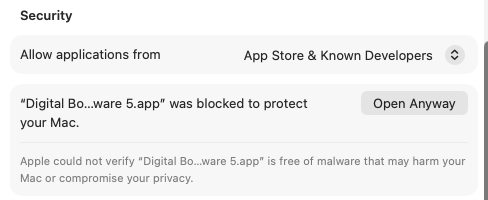
Real screen of the Mac settings. The button is on the right.
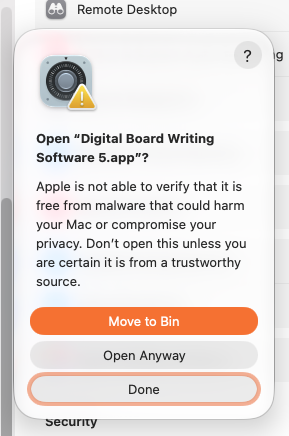
A second box opens. Press Open Anyway (not Move to Bin).
एक और बॉक्स खुलेगा। Open Anyway दबाएँ (Move to Bin नहीं)।
Type your Mac login password and press OK.
अपने Mac का पासवर्ड डालकर OK दबाएँ।
If it asks again, press Open. The software starts. Next time just double-click.
फिर पूछे तो Open दबाएँ। सॉफ़्टवेयर शुरू हो जाएगा। अगली बार सिर्फ़ डबल-क्लिक करना है।
That is all. Next time, double-click the software and it opens directly.
बस इतना ही। अगली बार डबल-क्लिक करते ही सॉफ़्टवेयर सीधे खुलेगा।
The pictures are simple drawings. Your screen may look slightly different on a newer or older Mac.